ProPresenter Media Cleanup Guide

How we cleaned up a ProPresenter media library, removing duplicates, old content, and fixing broken media paths after a username change.

The Problem

Our ProPresenter installation had several issues:

  • Duplicate files wasting disk space (4.6 GB of duplicates)
  • Old content like funeral slideshows and dated events no longer needed
  • Broken media paths after the Mac username changed from mediateam to worshipmedia
  • Media referenced paths like /Users/Shared/Renewed Vision Media/ that no longer existed

Part 1: Finding and Deleting Duplicate Files

We created a bash script to find files with identical content using MD5 hashes, preferring to keep “originals” over files with _copy in the name.

#!/bin/bash
# find_duplicates.sh - Find and delete duplicate files in ProPresenter Media folder

MEDIA_DIR="$HOME/Documents/ProPresenter/Media"
ONEDRIVE_DIR="$HOME/OneDrive - Your Church Name/ProPresenter_Sync/Media"

# Set to 1 to actually delete, 0 for dry run
DRY_RUN=1

# Create temp files
HASH_FILE=$(mktemp)
DUPLICATES_FILE=$(mktemp)
trap "rm -f $HASH_FILE $DUPLICATES_FILE" EXIT

echo "Scanning $MEDIA_DIR..."

# Calculate MD5 hashes for all files
find "$MEDIA_DIR" -type f ! -name ".*" -print0 | while IFS= read -r -d '' file; do
    hash=$(md5 -q "$file" 2>/dev/null)
    if [[ -n "$hash" ]]; then
        echo "$hash|$file"
    fi
done > "$HASH_FILE"

# Find duplicate hashes
cut -d'|' -f1 "$HASH_FILE" | sort | uniq -d > "$DUPLICATES_FILE"

# Process each duplicate set
while IFS= read -r dup_hash; do
    files=()
    while IFS='|' read -r hash filepath; do
        [[ "$hash" == "$dup_hash" ]] && files+=("$filepath")
    done < "$HASH_FILE"

    # Keep original (file without _copy), delete others
    keep=""
    for f in "${files[@]}"; do
        if [[ ! "$f" == *"_copy"* && ! "$f" == *" copy"* ]]; then
            keep="$f"
            break
        fi
    done
    [[ -z "$keep" ]] && keep="${files[0]}"

    echo "KEEP: $keep"
    for f in "${files[@]}"; do
        if [[ "$f" != "$keep" ]]; then
            if [[ $DRY_RUN -eq 0 ]]; then
                rm -f "$f"
                # Also delete from OneDrive sync
                relative_path="${f#$MEDIA_DIR/}"
                rm -f "$ONEDRIVE_DIR/$relative_path"
            fi
            echo "  DELETE: $f"
        fi
    done
done < "$DUPLICATES_FILE"

Results: Found 227 duplicate sets, deleted 305 files, freed 4.6 GB.

Part 2: Finding Old/One-Time Content

We searched for presentations that were unlikely to be needed again:

  • Memorial and funeral services (named after individuals)
  • Dated annual events (Christmas Pageant 2021, Confirmation 2022)
  • One-time events (Town Hall presentations, Scout ceremonies)
  • Duplicate hymns in Special folder that exist in Default library
# Find presentations with dates or person names
find ~/Documents/ProPresenter/Libraries -name "*.pro" -exec basename {} ; | 
  grep -iE "[0-9]{4}|memorial|funeral|recognition|pageant"

We created a review file listing candidates for deletion with comments explaining why each could be removed, then manually reviewed before deleting.

Part 3: Finding Associated Media for Old Presentations

ProPresenter stores imported slides in Media/Imported/{UUID}/ folders. We needed to find which media folders were ONLY used by presentations being deleted (not shared with active presentations).

#!/usr/bin/env python3
# find_unique_media.py - Find media only used by presentations marked for deletion

import os
import re
from pathlib import Path

PROPRESENTER_DIR = Path.home() / "Documents/ProPresenter"
UUID_PATTERN = re.compile(r'[0-9A-F]{8}-[0-9A-F]{4}-[0-9A-F]{4}-[0-9A-F]{4}-[0-9A-F]{12}', re.IGNORECASE)

def extract_uuids(filepath):
    """Extract all UUIDs referenced in a .pro file."""
    with open(filepath, 'rb') as f:
        content = f.read().decode('utf-8', errors='ignore')
    return set(UUID_PATTERN.findall(content))

# Get UUIDs from presentations to delete vs keep
delete_uuids = set()
keep_uuids = set()

for pro_file in delete_presentations:
    delete_uuids.update(extract_uuids(pro_file))

for pro_file in keep_presentations:
    keep_uuids.update(extract_uuids(pro_file))

# UUIDs only in delete set are safe to remove
unique_uuids = delete_uuids - keep_uuids

# Find corresponding Media/Imported folders
for uuid in unique_uuids:
    folder = PROPRESENTER_DIR / "Media/Imported" / uuid
    if folder.exists():
        print(f"Safe to delete: {folder}")

Results: Found 5 unique media folders (44.5 MB) containing memorial slideshow images that could be safely deleted.

Part 4: Fixing Broken Media Paths

After a username change from mediateam to worshipmedia, all media paths were broken. ProPresenter stores paths in two places:

  1. Playlist files (protobuf format)
  2. Workspace database (LevelDB format)

Fixing Playlist Files with Protobuf

ProPresenter 7 uses Protocol Buffers for playlist files. We used the reverse-engineered schema from greyshirtguy/ProPresenter7-Proto.

# Clone the proto definitions
git clone https://github.com/greyshirtguy/ProPresenter7-Proto.git ~/dev/ProPresenter7-Proto

# Install protobuf tools
pip3 install grpcio-tools

# Compile proto files to Python
cd ~/dev/ProPresenter7-Proto/proto
python3 -m grpc_tools.protoc -I. --python_out=. *.proto
#!/usr/bin/env python3
# fix_media_paths.py - Fix paths in ProPresenter playlist files

import sys
from pathlib import Path
from google.protobuf.message import Message

sys.path.insert(0, str(Path.home() / "dev/ProPresenter7-Proto/proto"))
from proto import propresenter_pb2

PATH_MAPPINGS = [
    ("/Users/Shared/Renewed Vision Media/",
     "/Users/worshipmedia/Documents/ProPresenter/Media/Renewed Vision Media/"),
    ("/Users/mediateam/", "/Users/worshipmedia/"),
    ("/Users/tom/", "/Users/worshipmedia/"),
]

def fix_string(s):
    for old, new in PATH_MAPPINGS:
        s = s.replace(old, new)
    return s

def fix_message(msg, path="root"):
    """Recursively fix all string fields containing paths."""
    for field in msg.DESCRIPTOR.fields:
        if field.label == 3:  # Repeated
            for i, item in enumerate(getattr(msg, field.name)):
                if field.message_type:
                    fix_message(item, f"{path}.{field.name}[{i}]")
                elif field.type == 9 and '/' in item:  # String with path
                    getattr(msg, field.name)[i] = fix_string(item)
        elif field.message_type:
            sub_msg = getattr(msg, field.name)
            if sub_msg.ByteSize() > 0:
                fix_message(sub_msg, f"{path}.{field.name}")
        elif field.type == 9:  # String
            value = getattr(msg, field.name)
            if value and '/' in value:
                setattr(msg, field.name, fix_string(value))

# Parse and fix the Media playlist
media_file = Path.home() / "Documents/ProPresenter/Playlists/Media"
doc = propresenter_pb2.PlaylistDocument()
doc.ParseFromString(media_file.read_bytes())
fix_message(doc)
media_file.write_bytes(doc.SerializeToString())

Results: Fixed 3,472 path references in the Media playlist.

Fixing the Workspace Database

ProPresenter caches media information in a LevelDB database at:

~/Library/Application Support/RenewedVision/ProPresenter/Workspaces/ProPresenter-{ID}/Database/

The simplest fix was to let ProPresenter rebuild this database:

  1. Quit ProPresenter completely
  2. Stop the helper processes:
    pkill -9 -f "ProPresenter"
    launchctl bootout gui/$(id -u)/com.renewedvision.propresenter.workspaces-helper
  3. Delete or rename the Database folder
  4. Restart ProPresenter – it rebuilds the database and rescans media

Temporary Symlinks for Legacy Paths

For presentation files (.pro) that still reference old paths, we created symlinks:

# For /Users/Shared paths
mkdir -p /Users/Shared/Documents
ln -sf ~/Documents/ProPresenter /Users/Shared/Documents/ProPresenter
ln -sf ~/Documents/ProPresenter/Media/Renewed Vision Media /Users/Shared/Renewed Vision Media

# For old username paths (requires sudo)
sudo mkdir -p /Users/mediateam/Documents
sudo ln -sf /Users/worshipmedia/Documents/ProPresenter /Users/mediateam/Documents/ProPresenter

Summary

Task Files Affected Space Freed
Duplicate removal 305 files 4.6 GB
Old presentations 24 files 785 KB
Orphaned media folders 5 folders (187 files) 44.5 MB
Path fixes 3,472 references

Total space recovered: ~4.7 GB

Tools Used

  • md5 – macOS built-in hash tool for duplicate detection
  • protobuf/grpcio-tools – For parsing ProPresenter playlist files
  • ProPresenter7-Proto – Reverse-engineered protobuf schema
  • Python 3 – Scripting for media analysis and path fixing

Tips

  1. Always run duplicate finder in dry-run mode first
  2. Back up the Playlists/Media file before modifying
  3. The ProPresenter workspace database rebuilds automatically – sometimes deleting it is the easiest fix
  4. When deleting media, also delete from your sync folder (OneDrive, Dropbox, etc.)
  5. Check both Media/Assets/ and Media/Renewed Vision Media/ for files – they may be in unexpected locations

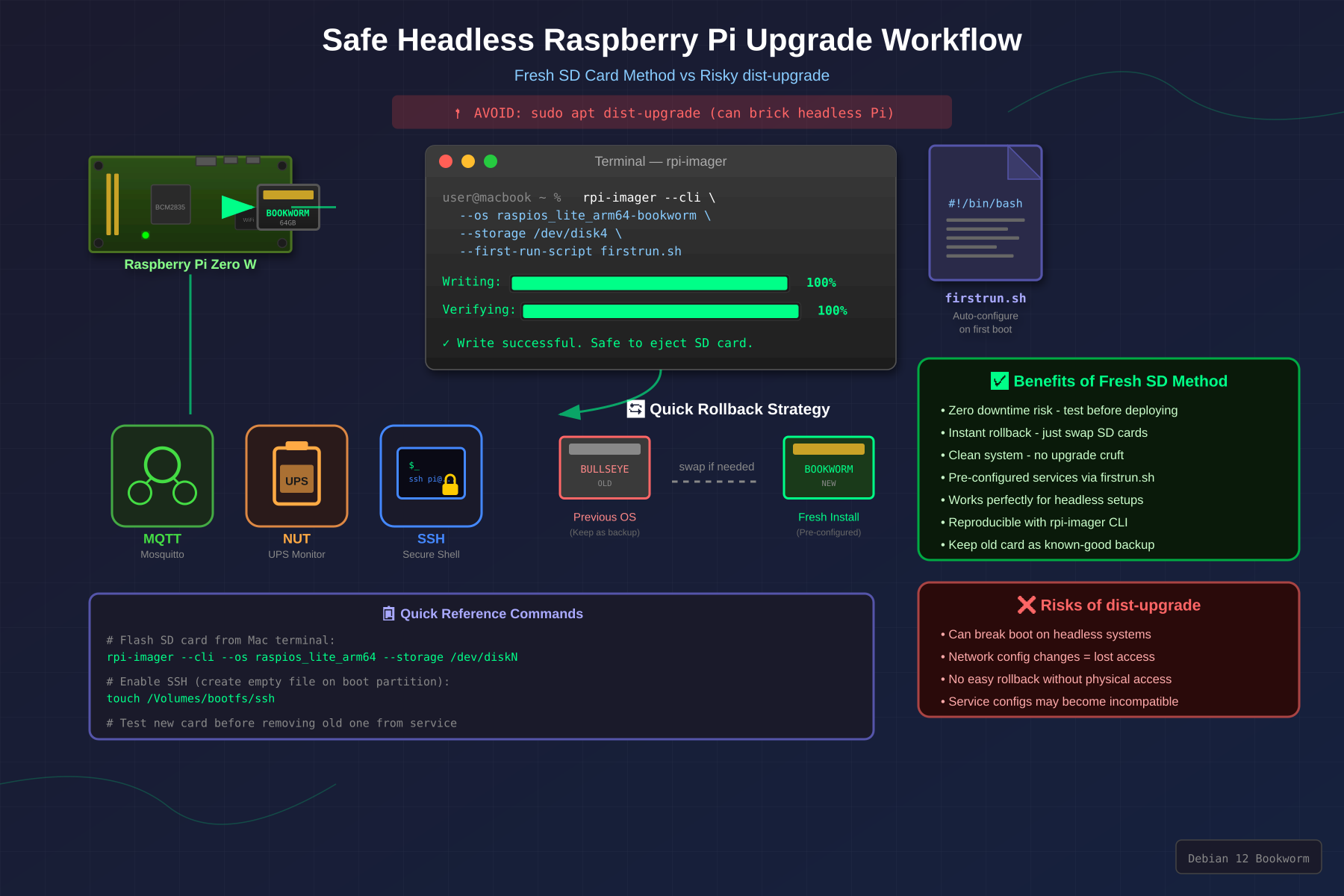
Upgrading a Raspberry Pi Zero W to Bookworm via Clean SD Card Install


After a previous in-place upgrade from Buster to Bookworm bricked a headless Pi (sshd broke when libc6 was upgraded past what the old openssh-server binary could handle, requiring recovery via a privileged Docker container with chroot), I switched to a clean install strategy: flash a new SD card, configure it headless, and keep the old card as a fallback.

This post documents the process for two Pi Zero W boards — one running a custom MQTT service, the other running NUT (Network UPS Tools). The approach works for any headless Pi.

Why Clean Install Instead of In-Place Upgrade

An in-place apt dist-upgrade across major Debian releases is risky on a headless Pi. The core problem: package upgrades happen sequentially, and there’s a window where libc6 has been upgraded but openssh-server hasn’t been replaced yet. The old sshd binary can’t load the new libc, and you lose your only way in.

A clean install on a separate SD card avoids this entirely:

  • Zero risk of bricking — the old card is untouched
  • No orphaned packages or stale config from previous releases
  • Rollback is just swapping the SD card back

Step 1: Flash with rpi-imager CLI

The Raspberry Pi Imager has a --cli mode that handles everything dd does, plus headless configuration via a firstrun.sh script. No GUI needed.

Install the Imager

brew install --cask raspberry-pi-imager

Download the Image

For the Pi Zero W (armv6l), you need the 32-bit armhf image — 64-bit won’t boot.

curl -L -o ~/Downloads/raspios-bookworm-armhf-lite.img.xz 
  "https://downloads.raspberrypi.com/raspios_lite_armhf/images/raspios_lite_armhf-2025-05-13/2025-05-13-raspios-bookworm-armhf-lite.img.xz"

Create a firstrun.sh Script

On Bookworm, the old method of dropping ssh and wpa_supplicant.conf files into the boot partition no longer works. Bookworm uses NetworkManager instead of wpa_supplicant, and requires a first-run script for headless setup.

The script follows the same pattern the Raspberry Pi Imager GUI generates internally. It tries the imager_custom utility first (available on recent Raspberry Pi OS images), falling back to manual configuration:

#!/bin/bash
set +e

# --- Hostname ---
CURRENT_HOSTNAME=`cat /etc/hostname | tr -d " tnr"`
if [ -f /usr/lib/raspberrypi-sys-mods/imager_custom ]; then
   /usr/lib/raspberrypi-sys-mods/imager_custom set_hostname myhostname
else
   echo myhostname >/etc/hostname
   sed -i "s/127.0.1.1.*$CURRENT_HOSTNAME/127.0.1.1tmyhostname/g" /etc/hosts
fi

# --- SSH ---
FIRSTUSER=`getent passwd 1000 | cut -d: -f1`
FIRSTUSERHOME=`getent passwd 1000 | cut -d: -f6`

if [ -f /usr/lib/raspberrypi-sys-mods/imager_custom ]; then
   /usr/lib/raspberrypi-sys-mods/imager_custom enable_ssh
else
   systemctl enable ssh
fi

# --- User and Password ---
# Generate the hash with: echo 'yourpassword' | openssl passwd -6 -stdin
PWHASH='$6$xxxx...your-hash-here'

if [ -f /usr/lib/userconf-pi/userconf ]; then
   /usr/lib/userconf-pi/userconf 'pi' "$PWHASH"
else
   echo "$FIRSTUSER:$PWHASH" | chpasswd -e
   if [ "$FIRSTUSER" != "pi" ]; then
      usermod -l "pi" "$FIRSTUSER"
      usermod -m -d "/home/pi" "pi"
      groupmod -n "pi" "$FIRSTUSER"
      if grep -q "^autologin-user=" /etc/lightdm/lightdm.conf ; then
         sed /etc/lightdm/lightdm.conf -i -e "s/^autologin-user=.*/autologin-user=pi/"
      fi
      if [ -f /etc/systemd/system/getty@tty1.service.d/autologin.conf ]; then
         sed /etc/systemd/system/getty@tty1.service.d/autologin.conf -i -e "s/$FIRSTUSER/pi/"
      fi
      if [ -f /etc/sudoers.d/010_pi-nopasswd ]; then
         sed -i "s/^$FIRSTUSER /pi /" /etc/sudoers.d/010_pi-nopasswd
      fi
   fi
fi

# --- WiFi ---
if [ -f /usr/lib/raspberrypi-sys-mods/imager_custom ]; then
   /usr/lib/raspberrypi-sys-mods/imager_custom set_wlan 'YOUR_SSID' 'YOUR_PASSWORD' 'US'
else
cat >/etc/wpa_supplicant/wpa_supplicant.conf <<'WPAEOF'
country=US
ctrl_interface=DIR=/var/run/wpa_supplicant GROUP=netdev
ap_scan=1

update_config=1
network={
    ssid="YOUR_SSID"
    psk=YOUR_PASSWORD
}

WPAEOF
   chmod 600 /etc/wpa_supplicant/wpa_supplicant.conf
   rfkill unblock wifi
   for filename in /var/lib/systemd/rfkill/*:wlan ; do
       echo 0 > $filename
   done
fi

# --- Locale and Timezone ---
if [ -f /usr/lib/raspberrypi-sys-mods/imager_custom ]; then
   /usr/lib/raspberrypi-sys-mods/imager_custom set_keymap 'us'
   /usr/lib/raspberrypi-sys-mods/imager_custom set_timezone 'America/New_York'
else
   rm -f /etc/localtime
   echo "America/New_York" >/etc/timezone
   dpkg-reconfigure -f noninteractive tzdata
cat >/etc/default/keyboard <<'KBEOF'
XKBMODEL="pc105"
XKBLAYOUT="us"
XKBVARIANT=""
XKBOPTIONS=""

KBEOF
   dpkg-reconfigure -f noninteractive keyboard-configuration
fi

# --- Clean up ---
rm -f /boot/firstrun.sh
sed -i 's| systemd.run.*||g' /boot/cmdline.txt
exit 0

Generate the password hash on your Mac:

echo 'yourpassword' | openssl passwd -6 -stdin

Flash the Card

Find your SD card:

diskutil list external

Flash it (replace /dev/disk5 with your device):

diskutil unmountDisk /dev/disk5

/Applications/Raspberry Pi Imager.app/Contents/MacOS/rpi-imager 
  --cli 
  --first-run-script firstrun.sh 
  ~/Downloads/raspios-bookworm-armhf-lite.img.xz 
  /dev/disk5

The imager writes the image, verifies the hash, injects firstrun.sh into the boot partition, and appends a systemd.run directive to cmdline.txt so the script runs on first boot. It then auto-ejects the card.

Output looks like:

  Writing: [-------------------->] 100 %
  Verifying: [-------------------->] 100 %
Write successful.

Step 2: Boot and SSH In

Remove the old host key (the new OS has a new one):

ssh-keygen -R myhostname.home

Insert the card, power on the Pi, wait about 90 seconds, then:

ssh pi@myhostname.home
ssh-copy-id pi@myhostname.home

If it doesn’t resolve right away, the router may need a DHCP cycle to learn the new hostname. You can connect by IP in the meantime (check your router’s DHCP leases or use arp -a).

Step 3: Configure Services

Example: Python Service with pip

Bookworm enforces PEP 668 (externally managed Python), so pip install --user requires --break-system-packages:

sudo apt update
sudo apt install -y python3-pip git

pip install --user --break-system-packages --upgrade pip
git clone https://github.com/youruser/yourproject.git
cd yourproject
pip install --user --break-system-packages .

The binary lands in ~/.local/bin/. A systemd service file can reference it directly:

[Unit]
Description=My Service
After=network-online.target
Wants=network-online.target

[Service]
Type=simple
User=pi
EnvironmentFile=/home/pi/yourproject/config.env
ExecStart=/home/pi/.local/bin/yourcommand
Restart=always
RestartSec=30

[Install]
WantedBy=multi-user.target

Install and enable:

sudo ln -sf /home/pi/yourproject/myservice.service /etc/systemd/system/
sudo systemctl daemon-reload
sudo systemctl enable --now myservice

Example: NUT (Network UPS Tools)

sudo apt install -y nut

NUT needs five config files in /etc/nut/:

nut.conf — set the mode:

MODE=netserver

ups.conf — define the UPS (find your vendor/product IDs with lsusb):

[myups]
  driver = usbhid-ups
  port = auto
  desc = "My UPS"
  vendorid = 09ae
  productid = 2012

upsd.conf — listen on the network:

LISTEN 0.0.0.0 3493

upsd.users — define monitoring users:

[upsmon]
  password = secret
  upsmon master

[homeassistant]
  password = secret
  upsmon slave

upsmon.conf — local monitor:

MONITOR myups@localhost 1 upsmon secret master

Enable and start:

sudo systemctl enable --now nut-server nut-monitor

Note: on Bookworm, the NUT driver is no longer a single nut-driver.service. It uses nut-driver-enumerator to create per-UPS instances like nut-driver@myups.service. These start automatically based on ups.conf.

Verify:

upsc myups@localhost

USB Permissions

The nut package ships a udev rule (/lib/udev/rules.d/62-nut-usbups.rules) that grants the nut group access to supported UPS devices. If the UPS was plugged in before the package was installed, a reboot is needed for the rule to take effect. After reboot, ls -la /dev/bus/usb/001/ should show the UPS device owned by root:nut.

Do not run udevadm trigger on a running system to fix this — on a Pi Zero W with limited RAM, it can destabilize the system if the NUT driver is crash-looping. A clean reboot is safer.

SNMP

sudo apt install -y snmpd snmp

Write /etc/snmp/snmpd.conf:

agentaddress udp:161,udp6:161

rocommunity MYCOMMUNITY  default
rocommunity6 MYCOMMUNITY  default

sysLocation    Home
sysContact     admin@myhostname

view   systemonly  included   .1.3.6.1.2.1.1
view   systemonly  included   .1.3.6.1.2.1.25.1

Note: install the snmp package (client tools) separately from snmpd (daemon). Bookworm doesn’t ship MIB files by default, so use numeric OIDs to verify:

sudo systemctl enable --now snmpd
snmpwalk -v2c -c MYCOMMUNITY localhost .1.3.6.1.2.1.1

Step 4: Set Up Backups

Generate an SSH key and copy it to your backup server:

ssh-keygen -t ed25519 -N ""
ssh-copy-id user@backupserver

Add a weekly cron job:

(crontab -l 2>/dev/null; echo '@weekly rsync -avz /home/pi user@backupserver:/backups/myhostname/') | crontab -

If the Pi can’t interactively authenticate to the backup server (no password prompt over SSH), you can push the key from your workstation instead:

# On your Mac/workstation:
PI_PUBKEY=$(ssh pi@myhostname.home "cat ~/.ssh/id_ed25519.pub")
ssh user@backupserver "echo '$PI_PUBKEY' >> ~/.ssh/authorized_keys"

Step 5: Verify and Retain Rollback

After setup, do a full check:

ssh pi@myhostname.home "
  /usr/sbin/sshd -V 2>&1; 
  sudo systemctl is-active myservice; 
  df -h /; 
  uptime"

Expected:

  • OpenSSH 9.2 (Bookworm native)
  • Services active
  • Disk usage well under capacity

Keep the old SD card as a rollback for at least a week. If anything goes wrong, power off, swap the old card back in, power on. The old system boots unchanged with all data intact.

Gotchas

PEP 668 on Bookworm. pip install --user fails without --break-system-packages. This is new in Bookworm. If you prefer isolation, use a venv instead, but you’ll need to adjust your systemd ExecStart path.

NUT driver service names changed. On Bullseye, it was nut-driver.service. On Bookworm, the driver uses a template unit: nut-driver@<upsname>.service, managed by nut-driver-enumerator. You can’t systemctl enable nut-driver — it doesn’t exist as a standalone unit.

DNS after hostname change. If you renamed the Pi (e.g., from raspberrypi-zwave to raspberrypi-ups), the router’s DNS may cache the old name. Bouncing the WiFi connection pushes the new hostname via DHCP:

sudo nmcli connection down preconfigured
sudo nmcli connection up preconfigured

The connection name preconfigured is what Bookworm’s firstrun.sh creates.

known_hosts after reflash. A fresh OS means new SSH host keys. You’ll get a scary REMOTE HOST IDENTIFICATION HAS CHANGED warning. Remove the old key for both the hostname and IP:

ssh-keygen -R myhostname.home
ssh-keygen -R 192.168.x.x

wpa_supplicant.conf doesn’t work on Bookworm. The old trick of creating /boot/wpa_supplicant.conf for headless WiFi no longer works. Bookworm uses NetworkManager. Use rpi-imager --cli --first-run-script instead.

SNMP MIBs not installed. snmpwalk ... system fails with Unknown Object Identifier. Use numeric OIDs (.1.3.6.1.2.1.1) or install the non-free MIBs package.

udevadm trigger on a Pi Zero W. Avoid running this while a USB driver is crash-looping. The Zero W has 512 MB of RAM. A tight restart loop plus udev retriggering can exhaust memory and make the system unresponsive. Reboot instead.

Recovering SSH on a Headless Raspberry Pi Through a Privileged Docker Container

I run a Raspberry Pi in my unheated garage, wired to a garage door controller via Z-Wave. No monitor, no keyboard — just SSH. So when a botched OS upgrade killed SSH, I had to get creative.

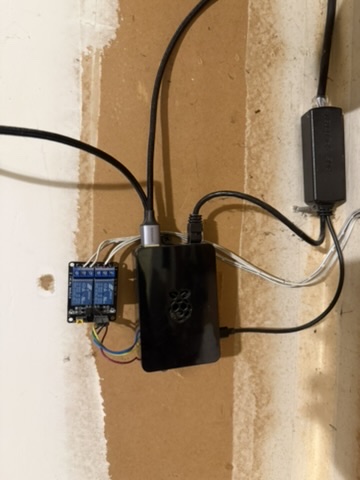
A Raspberry Pi connected to a Z-Wave garage door controller, with cables and a power source, mounted on a wall.

The Setup

The Pi was running Raspbian Buster (Debian 10) with Docker containers, and I was upgrading it to Bookworm (Debian 12). A two-generation leap across Buster → Bullseye → Bookworm.

What Went Wrong

During the Bullseye-to-Bookworm upgrade, the first apt-get upgrade failed because Bullseye’s dpkg (1.20.x) doesn’t support zstd-compressed .deb packages that Bookworm uses. To bootstrap the new dpkg, I force-installed Bookworm’s libc6 (2.36) alongside the new dpkg (1.22.6):

dpkg --force-depends --force-breaks -i locales_*.deb libc6_*.deb dpkg_*.deb

This upgraded libc6 from 2.28 (Buster) to 2.36 (Bookworm) — and immediately broke the running openssh-server (7.9p1, from Buster). The old sshd binary was incompatible with the new libc6. SSH connections would complete key exchange but then immediately close:

debug1: SSH2_MSG_SERVICE_ACCEPT received
... connection closed

The Pi was now unreachable via SSH.

The Lifeline: A Privileged Docker Container

Two Docker containers were still running on the Pi: zigbee2mqtt (not privileged) and zwavejs2mqtt (privileged, with host networking). The zwavejs2mqtt container (Z-Wave JS UI) runs with --privileged and --network=host, exposing a Socket.IO API on port 8091 that includes a driverFunction method — designed for custom Z-Wave driver code, but it evaluates arbitrary JavaScript via new Function().

Getting Shell Access

The driverFunction eval context doesn’t have require() (it’s a bundled ES module context). Neither require nor process.mainModule.require worked. But process.binding('spawn_sync') is available — a low-level Node.js internal that directly invokes posix_spawnp:

const ss = process.binding('spawn_sync');
const r = ss.spawn({
  file: '/bin/sh',
  args: ['/bin/sh', '-c', 'id && hostname'],
  envPairs: ['PATH=/usr/sbin:/usr/bin:/sbin:/bin'],
  stdio: [
    { type: 'pipe', readable: true, writable: false },
    { type: 'pipe', readable: false, writable: true },
    { type: 'pipe', readable: false, writable: true }
  ]
});
const stdout = Buffer.from(r.output[1]).toString();
// uid=0(root) gid=0(root) — running as root in privileged container

Accessing the Host Filesystem

The privileged container can mount the host’s root partition:

mkdir -p /host_root
mount /dev/mmcblk0p2 /host_root
mount --bind /proc /host_root/proc
mount --bind /sys /host_root/sys
mount --bind /dev /host_root/dev
mount --bind /run /host_root/run
cp /etc/resolv.conf /host_root/etc/resolv.conf

Now chroot /host_root gives a full host environment.

The Fix (Three Rounds)

Round 1: dpkg-deb Is Broken Too

First attempt: run dpkg --configure -a && apt-get -f install in the chroot. Failed because the new dpkg (1.22.6) depends on dpkg-deb, which links against liblzma5 >= 5.4.0. The system still had Bullseye’s liblzma5 (5.2.5):

dpkg-deb: /lib/arm-linux-gnueabihf/liblzma.so.5: version 'XZ_5.4' not found

This meant dpkg couldn’t unpack any .deb files at all — a chicken-and-egg problem.

Round 2: Manual Library Extraction with ar + tar

The solution was to bypass dpkg-deb entirely. .deb files are ar archives containing a data.tar.xz. I could extract the library files directly:

# Download the .deb files (apt-get download still works)
chroot /host_root sh -c 'cd /tmp && apt-get download liblzma5 libzstd1'

# Extract using ar + tar inside the chroot
chroot /host_root sh -c '
  cd /tmp
  ar x liblzma5_*.deb
  xz -d data.tar.xz && tar xf data.tar -C /
  rm -f data.tar* control.tar* debian-binary
'

# Same for libzstd1, then register the new libraries
chroot /host_root ldconfig

After this, dpkg-deb --version worked again. Key detail: ar was not available inside the container (Alpine-based), but it was available on the host via chroot /host_root.

Round 3: Fix openssh-server

With dpkg-deb working, I could now install packages normally:

chroot /host_root sh -c '
  cd /tmp
  apt-get download openssh-server openssh-client openssh-sftp-server libssl3 mawk
  dpkg --force-depends --force-confold -i 
    mawk_*.deb openssh-client_*.deb openssh-sftp-server_*.deb 
    openssh-server_*.deb libssl3_*.deb
'
chroot /host_root dpkg --configure openssh-server

The mawk package was needed because openssh-server’s post-install script uses ucf, which requires awk.

Reboot

sync
umount /host_root/dev/pts /host_root/run /host_root/dev /host_root/sys /host_root/proc
umount /host_root
sync
echo b > /proc/sysrq-trigger

After reboot, SSH worked:

$ ssh pi@garage.home
Linux garage 5.10.103-v7+ #1529 SMP Tue Mar 8 12:21:37 GMT 2022 armv7l

$ dpkg -l openssh-server | grep openssh
ii  openssh-server 1:9.2p1-2+deb12u7 armhf  secure shell (SSH) server

The Dependency Chain That Broke Everything

dpkg 1.22.6 (Bookworm)
  → dpkg-deb
    → liblzma5 >= 5.4.0 (system had 5.2.5)
    → libzstd1 >= 1.5.2 (system had 1.4.8)

openssh-server 7.9p1 (Buster)
  → libc6 (linked against 2.28 ABI)
  → BROKEN when libc6 upgraded to 2.36

Fix order:
  1. Extract liblzma5 5.4.1 manually (ar + tar)
  2. Extract libzstd1 1.5.4 manually (ar + tar)
  3. ldconfig
  4. dpkg-deb now works
  5. Install libc-bin 2.36 via dpkg
  6. Install mawk (awk provider)
  7. Install openssh-server 9.2p1 via dpkg
  8. Reboot

Lessons Learned

  1. Never upgrade libc6 without upgrading openssh-server in the same transaction. The old sshd binary is immediately incompatible with the new libc.
  2. A privileged Docker container is a backdoor. If you have a privileged container with host networking, you have root access to the host. This saved the day here, but it’s also why you should minimize privileged containers.
  3. process.binding('spawn_sync') bypasses Node.js sandboxing. Even when require() is unavailable in an eval context, low-level process bindings provide shell access.
  4. ar + tar can replace dpkg-deb. When dpkg itself is broken, you can manually extract .deb files to bootstrap the package manager.
  5. Debian major version upgrades are fragile. Unlike Ubuntu’s do-release-upgrade (which runs a backup sshd on port 1022), Debian has no safety net. If SSH breaks mid-upgrade, you need physical access — or a creative workaround.
  6. Keep a privileged container running during remote OS upgrades. It might be your only way back in.

Object detection on Jetson Nano

I’ve been learning about AI and computer vision with my Jetson Nano. I’m hoping to have it use my cameras to improve my home automation. Ultimately, I want to install external security cameras which will detect and scare off the deer when they approach my fruit trees. However, to start with I decided I would automate a ‘very simple’ problem.

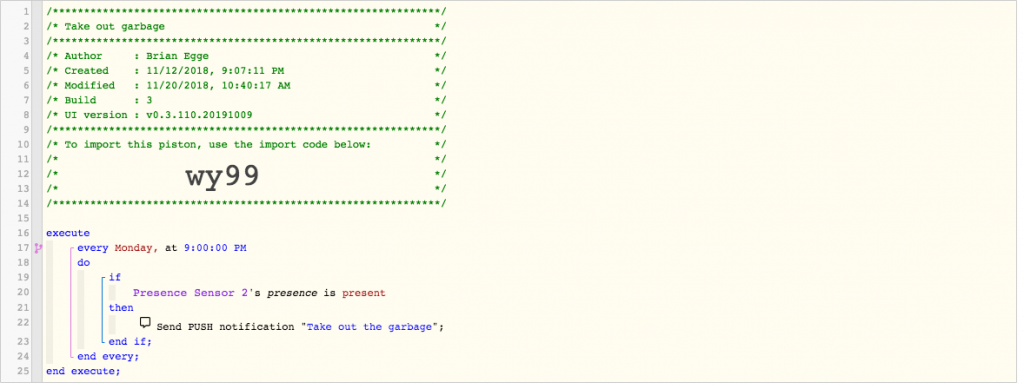
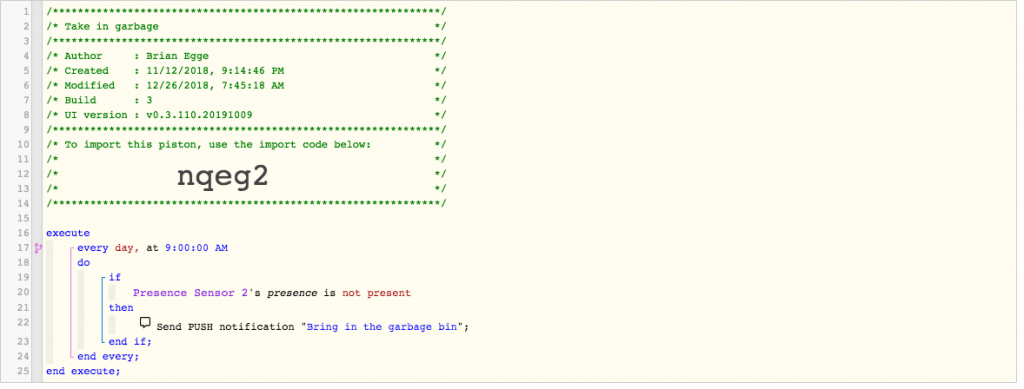
Take out the garbage reminder

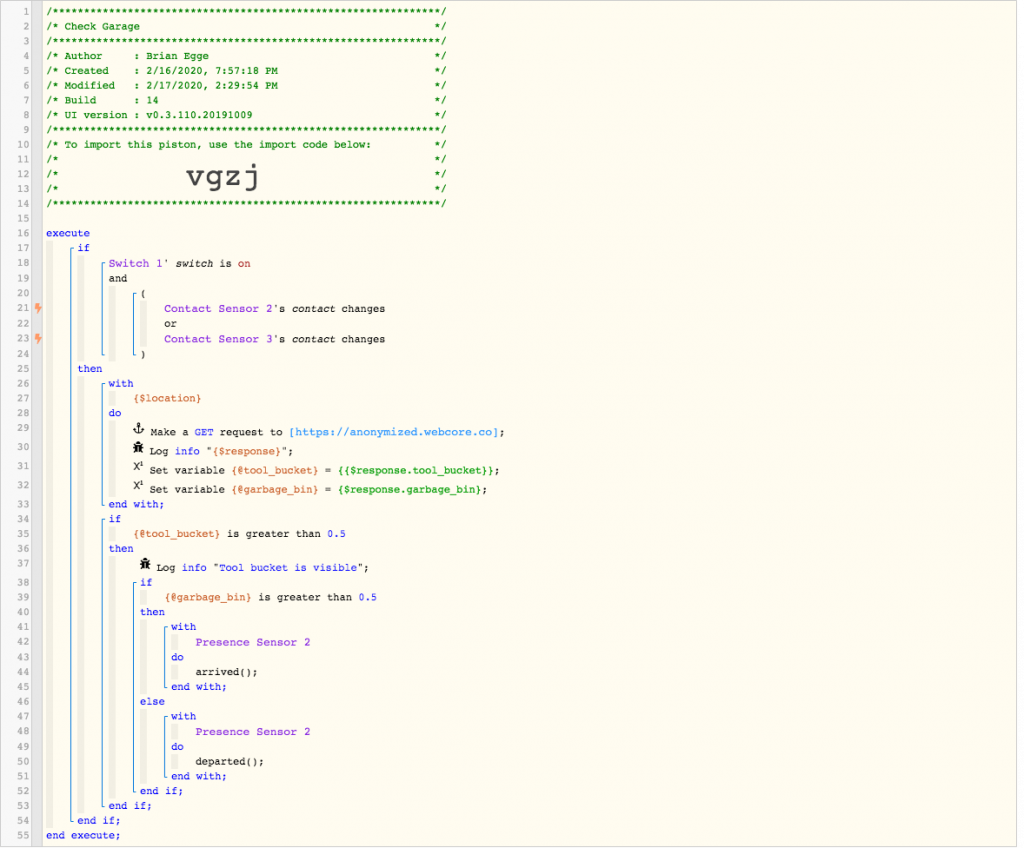
I have for some time had a reminder to bring out the garbage, to bring it in, and a thank you message once someone brings it in. This is done with a few WebCore pistons:

In order to decide if the garbage is in the garage or not I’ve attached a trackr tile which is detected by my Raspberry Pi 3. Unfortunately, if the battery dies or gets too cold it’s stops working. I could attach a larger battery to the tile, but it needs to be attached to my bin, so I don’t want something too big. So decided it should be trivial to have a camera learn if the garbage bin is present and then update the presence in SmartThings. It took me but a few minutes to train an object classification on https://teachablemachine.withgoogle.com/, so I thought this was doable.

First I mounted a USB camera to the ceiling in the garage and attached to the Raspberry Pi. I then spent a few days learning how to access the camera, and my options to stream from it, etc.. ultimately, I decided to use fswebcam to grab the images.

fswebcam --quiet --resolution 1920 --no-banner --no-timestamp --skip 20 $image

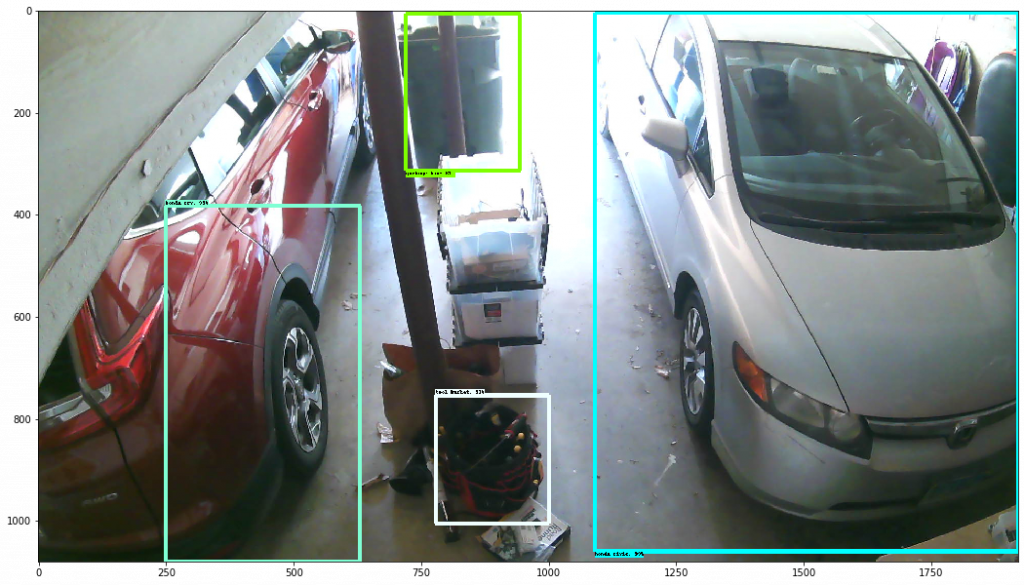
Once I had a collection of images, I installed labelImg on my nano. This is because for this project I didn’t just want to do image classification but object detection. In hindsight, it would have been much simpler to crop my image to the general area where the bins reside and then train an object detector.

After assembling about 20 images I then copied around scripts to create all the supporting files for TensorFlow. I went from text to csv to xml to protocol buffers. In the end, I had something ready to train. I attempted to train on the Nano, but soon came to the realization it was never going to work. My other PCs don’t have a modern GPU for running AI tasks, so my hope was to get it to work the with Nano. I learned about renting servers but that was going to add costs and complications. I then learned about Google Colab, which (for now), gives you free runtimes with a good GPU or TPU. Once running you’ll find out what kit your runtime has. I’ve gotten different hardware on different runs. My last run used the Tesla P100-PCIE-16GB. That’s a $5,000 card which not even NVidia is going to let me try out for free.

It look me a long time to get the pieces together in one notebook to be able to train my model. Certainly not the drag and drop of the Teachable Machine.

One thing which helped a lot was tuning the augmentation items. I know the camera is fixed so I don’t need to have it flip or crop the image. Since the garage has windows the lighting can change a lot depending on the time of day. I didn’t setup TensorBoard, but it quickly goes from 0.5% loss after a few steps. I have a small sample and a fixed camera, which helps.

  data_augmentation_options {
    random_adjust_brightness {
    }
  }
  data_augmentation_options {
    random_adjust_saturation {
    }
  }

Once running in the notebook I then spend another few days getting the model to run on my Jetson Nano. NVidia did not make this easy. Ultimately, I downgraded to TensorFlow 1.14.0 and patched one of the model files. Eventually I got it running, then I just needed to get it to work with SmartThings. Since the bins are really only going to move when the garage doors open, I don’t need to do this detection in real time. I want WebCore to query the garage when it detects the doors open or close. I have it do this by querying a web service on my Raspberry Pi:

On the Raspberry Pi, I want it to snap an image, and send it to the Jetson for analysis. I wrote the world’s dumbest web service, installing it with inetd:

#!/bin/sh

0<&-
image=$(mktemp /var/images/garage.XXXXXXX.jpg)

/bin/echo -en "HTTP/1.0 200 OK\r\n"
fswebcam --quiet --resolution 1920 --no-banner --no-timestamp --skip 20 $image
/bin/echo -en "Content-Type: application/json\r\n"

curl --silent -H "Tranfer-Encoding: chunked" -F "file=@$image" http://egge-nano.local:5000/detect > $image.txt
/bin/echo -en "Content-Length: $(wc -c < ${image}.txt)\r\n"
/bin/echo -en "Server: $(hostname) $0\r\n"
/bin/echo -en "Date: $(TZ=GMT date '+%a, %d %b %Y %T %Z')\r\n"
/bin/echo -en "\r\n"
cat $image.txt
chmod a+r $image

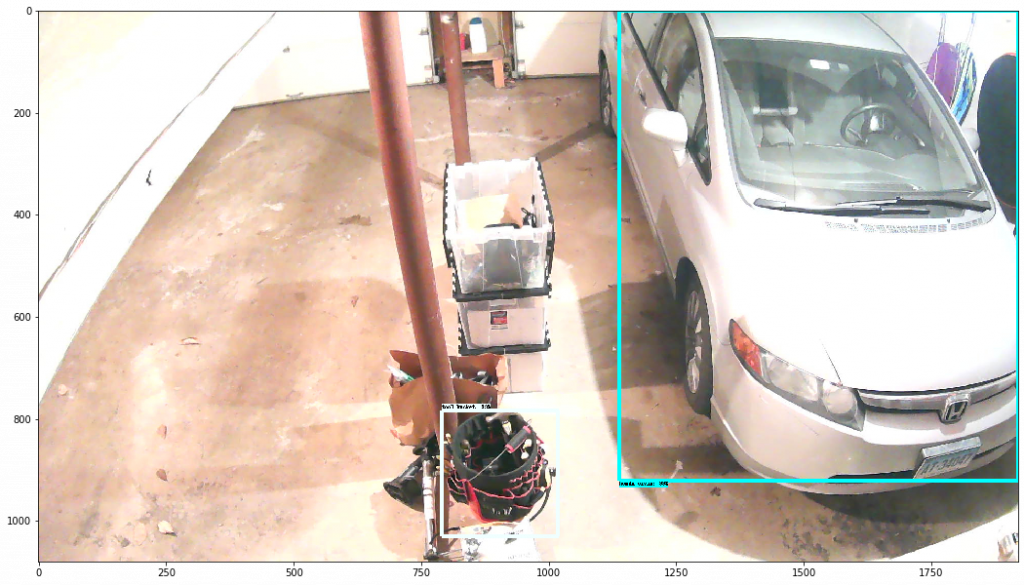
I keep a copy of the image and the response in case I need to retain the model. The image is sent over the jetson, where I have a Flask app running. I wasted a ton of time trying to get Flask to work, basically, if you use debug mode, then OpenCV doesn’t work because of different context loading. I could not seems to get Flask to keep the GPU opened for the life of the request, so on each request I open the GPU and load the model. This is quite inefficient as you may imagine. I also experimented with having the Raspberry Pi stream the video all the time over rtsp and then having ffmpeg save an image when it needs it. The problem seemed to be ffmpeg wasn’t always reliable. If I ran it for a single snapshot, it would not always capture an image. If I ran it continually, after some time it would exit. I have it trained to recognize four objects. If use my tool bucket as a source of truth. If it sees that, then I can assume it’s working, otherwise, I don’t have reliable enough information.

The scripts which I adapted are here: https://github.com/brianegge/garbage_bin

I’d like to use a ESP Cam to detect if a I have a package on my front steps. Maybe this will be my next project before I work on detecting deer.

Boiler Room Pipe Temperatures

I run SmartThings and Konneced for my home automation. I decided I could get some data on my boiler and hot water usage by monitoring the pipe temperatures with some cheap DS18B20 probes off Amazon.

Parts:
DS18B20 Five for $11.99 on Amazon
20′ of Shielded Low Voltage Security Alarm Wire
6′ of Aluminum tape
1 Mini PCB Prototype Board
1 4K7 resistor
A few shrink tubings

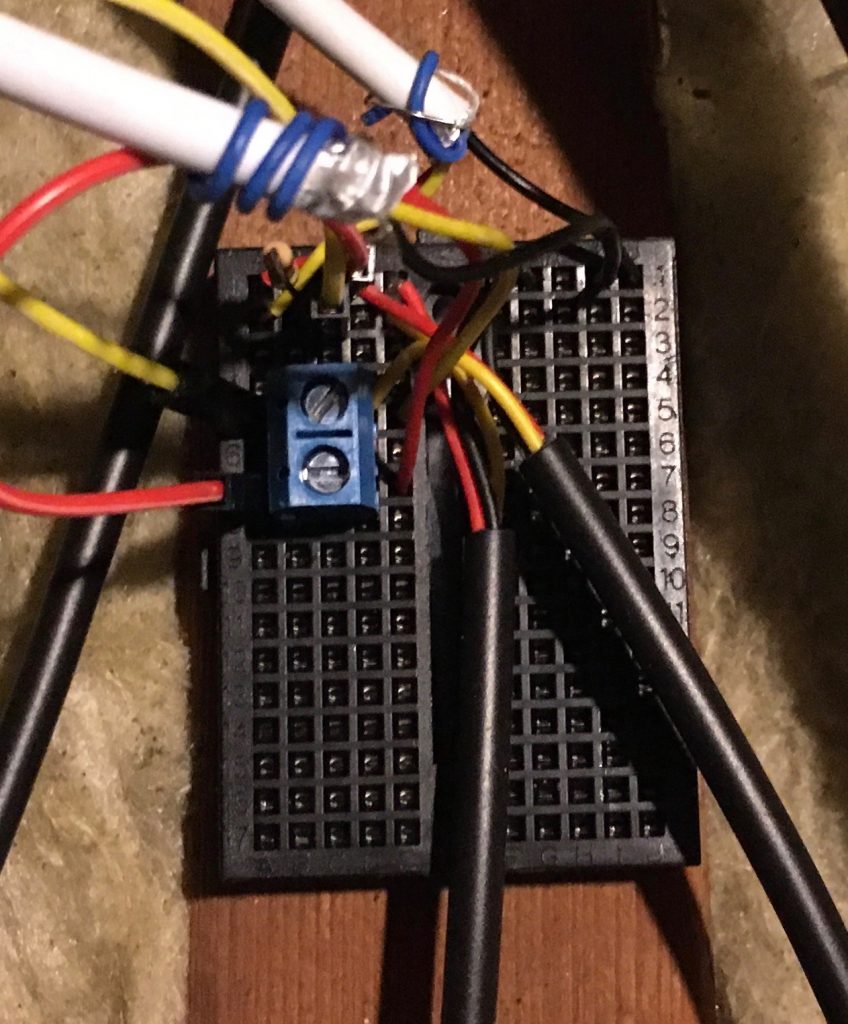
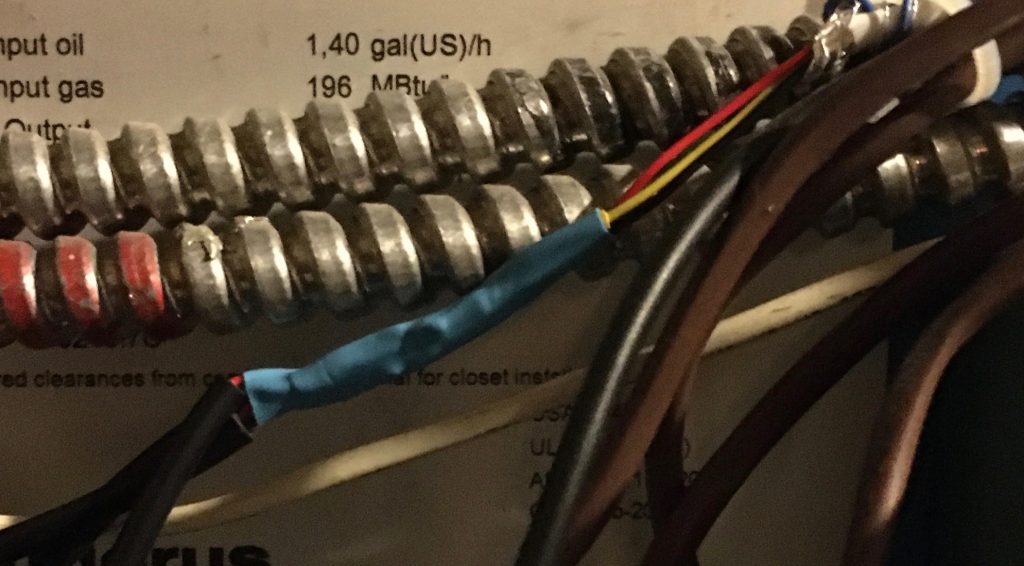
I used a Konnected add on board, put and connected my security wire to it. I tied the yellow wire to Pin 6, the black to the adjacent ground and the red to the +5v via a dupont wire. Next I ran the security wire over to my indirect hot water heater, where I connected two DS18B20’s and another cable over to my boiler. I used a prototype board because it was not an easy place to solder and though, I guess I could have done the soldering on the bench and then run the wire, as I did with my second run. I added the 4K7 pull up resistor here. I couldn’t get on of the yellow wires to insert into the prototype board, so I pushed in a header.

On my workbench I soldered three DS18B20 to one security wire and shrink tubed each wire plus a shink tube over all three. Effectively I have a star design.

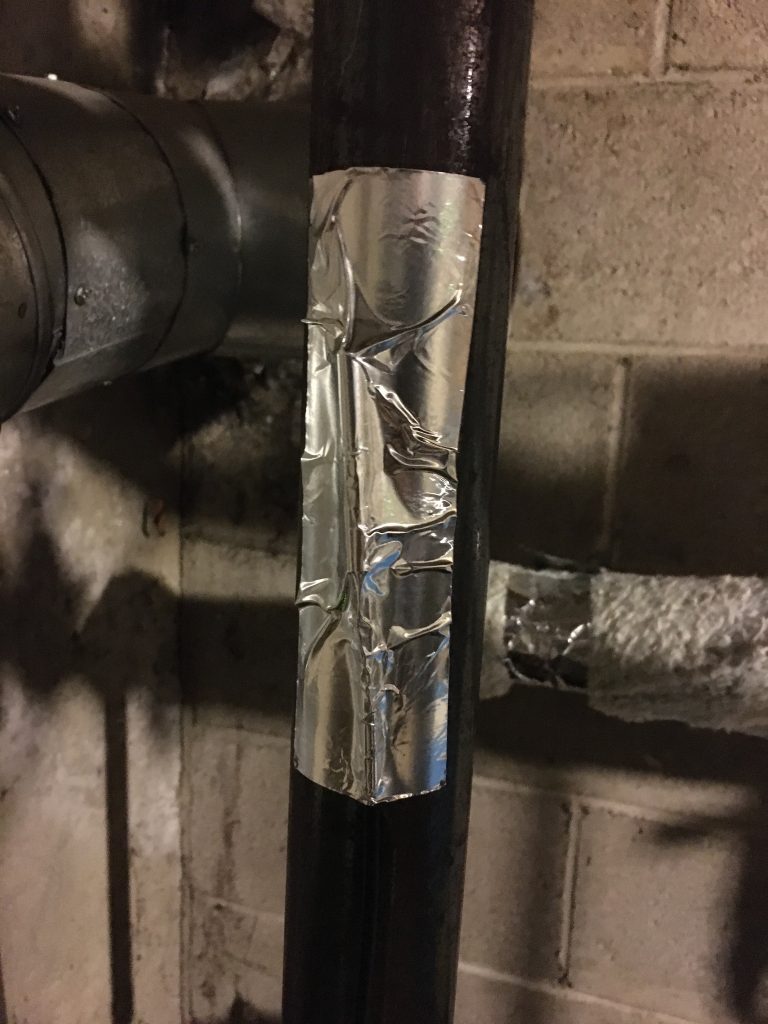
I placed the probes on the pipe an attached with aluminum tape. I then wrapped some insulation over the taped section.

I configured Konnected to poll every minute instead of every three. The devices appeared SmartThings shortly after I configured pin 6 to be a temperature probe.

My next task was to get the data recorded in my Raspberry Pi. For that I’m using InfluxDB and Grafana, following this guide: http://codersaur.com/2016/04/smartthings-data-visualisation-using-influxdb-and-grafana/

Smart Air Freshener

My wife asked for us to have an air freshener installed in the bathroom. I don’t like the plug in types, even if they don’t burn your house down. At my office we have air fresheners which run on a schedule, or maybe run 24×7, but seem to spray every fifteen minutes. I found a model on Amazon which was similar:

SVAVO Automatic LCD Fragrance Dispenser

This would probably work OK an in office, where you program it 9-5 M-F, but at home the schedule is not so easy. For one, we don’t want it going off when we’re asleep or not home. That’s trivial to set up a home automation to do that, but I could find no air fresheners which would connect to SmartThings.

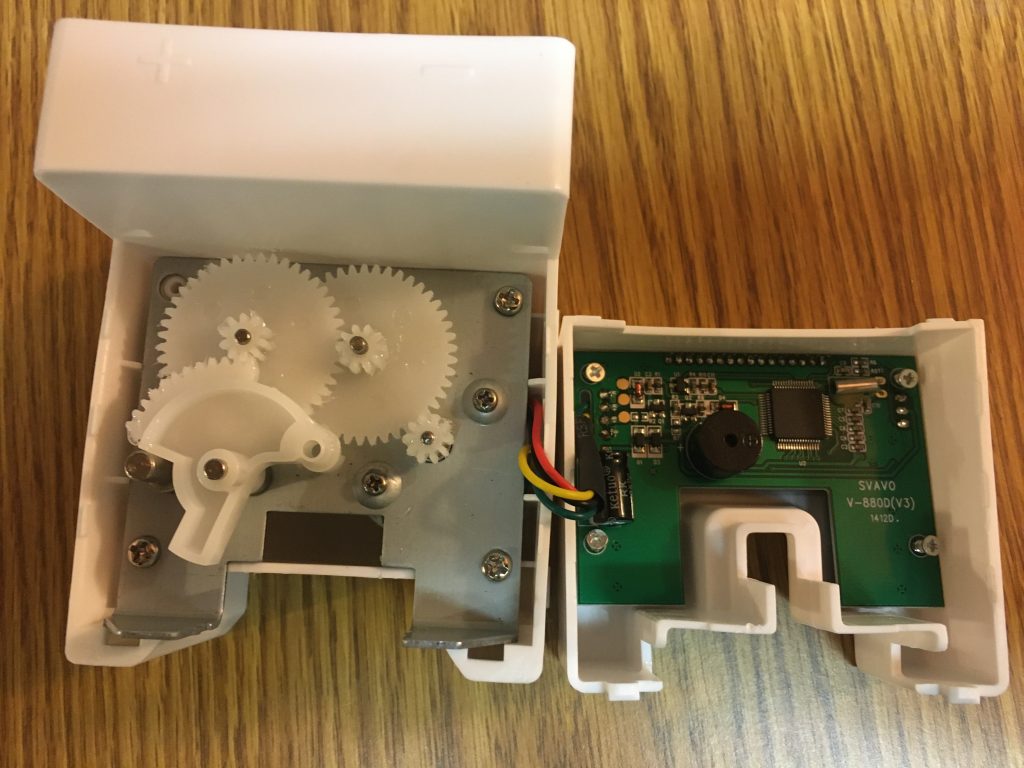
I decided to order the device and hack the motor to be controlled via SmartThings. Opening the device up, I found it ran on 3.2v via 2 AA batteries and had a simple PCB with two wires for the battery and two for the PCB. The PCB even had pads which I assume one could reprogram the controller. If the controller had a radio, my approach my have been to try to hack it. However, I assumed it didn’t, so I unsoldered the green(-) and yellow(+) wires from the motor.

It’s difficult to have a wifi device connected via batteries, so I decided I’d convert the device to run off of 5V micro-usb. This was easily powered via an ethernet cable and POE adaptor dropped down from my attic.

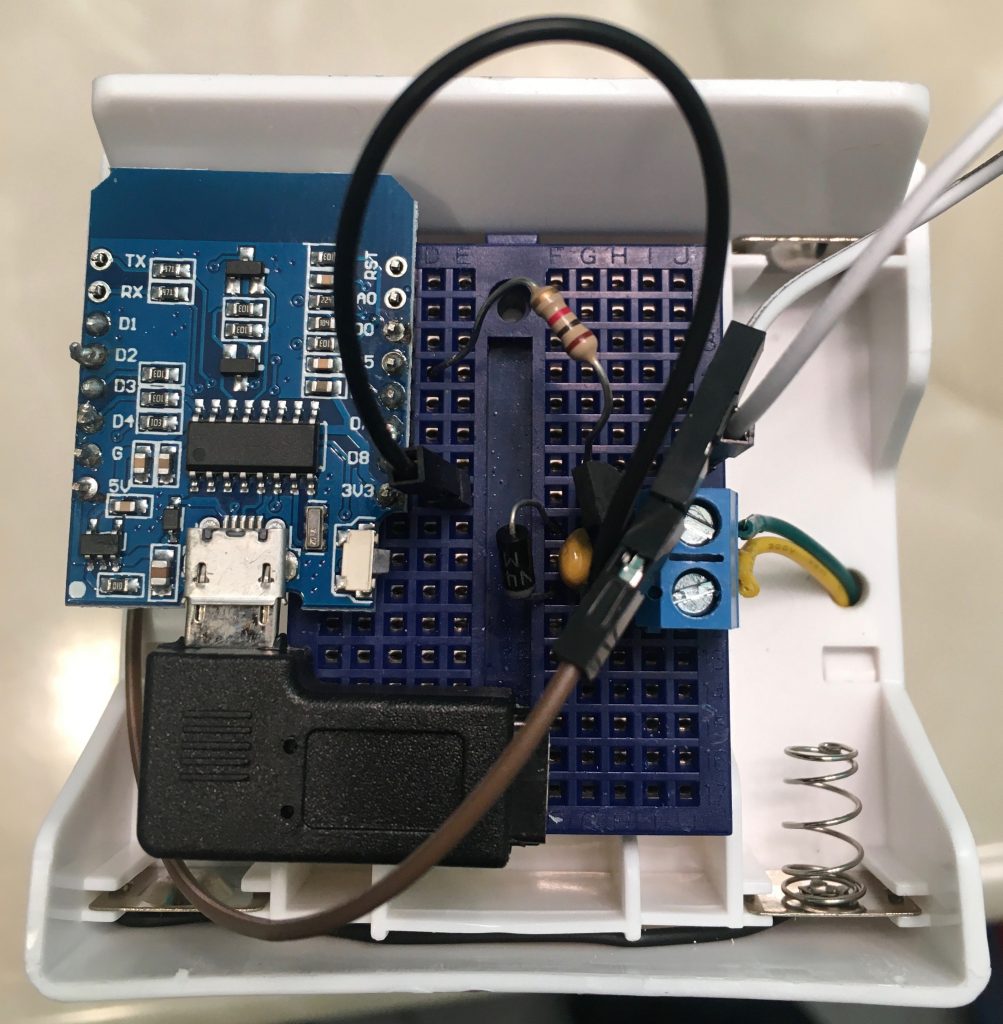
Wemos D1 Mini inside battery cabinet

Fortunately, the battery compartment had a generous amount of space. I decided to use the Wemos D1 Mini because of its small size and I flashed the Konnected firmware on. Using Konnected allowed for quick integration into SmartThings.

Once I had the software / hardware working, I mounted it on the wall. Because SmartThings has connections to Alexa and Google home, it was easy to get the voice assistants to activate the air freshener as well.

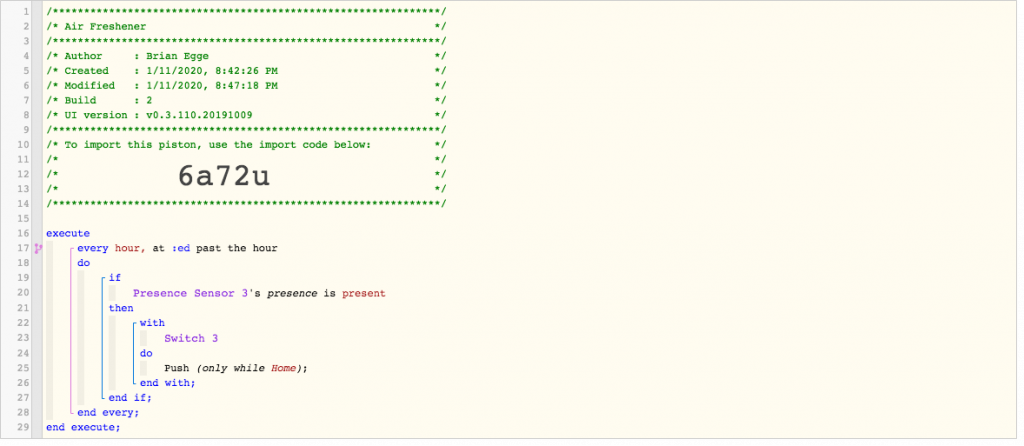
I created a basic piston to run it once an hour when my wife is home and not asleep. I also setup a routing to run it once when she first arrives home.

The Final Product!

Parts List:

I spent $35.97 on the air freshener and sprays, $21.64 on the parts for a total of $57.61. Most of the cost was my POE power supply and adaptor.

Connecting Novostella 20W Smart LED Flood Lights to SmartThings

I purchased of pair of LED flood lights for my home from Amazon. I’ve looked at the Philips Hue lights which look nice but are very expensive ($330). The Novostella were $35 each when I purchased them. The main problem with lights like this is they come with an app, and they can only be controlled from that app or applications which work with it’s cloud account. Changing the firmware should be easy and would allow it to work with any app or home automation system.

20W is very bright!

They appear to be ESP8266 based, so I should be able to flash them OTA using Tuya OTA. I used my Raspberry Pi 3 for the OTA flashing following this guide. The only issue I ran into is I plugged my lamp in too soon as it went out of the flashing light mode. There are no switches on the lamp, so the procedure is to plug in, unplug, plug in, unplug, plug in. Then it will resume blinking and the OTA software will work.

I found it’s quite important to attach the antennas before starting, otherwise, it may work but will be quite slow.

I checked my router for the device in the DHCP and connected to the web server. I setup the template as follows:

{"NAME":"Generic","GPIO":[0,0,0,0,37,41,0,0,38,40,39,0,0],"FLAG":0,"BASE":18}

The web UI lets you adjust the brightness and the white balance, but not the color. I tested the color command and got a nice blue:

Color 1845FF0000

Next, I wanted to connect to SmartThings. I installed this DHT https://github.com/GaryMilne/Tasmota-RGBCCT-DH-for-SmartThings-Classic-with-MQTT

I forked and installed the “Holiday Color Lights” SmartApp to automate changing the color of the lights with the season. It needs some work to be able to handle relative dates, like Fourth Thursday of the month. I modified it to use “white” for default when there isn’t a holiday.

I think the end result looks pretty good. I’ll be ordering two more of these.

Replacing MR77A Fan Receiver with Hampton Bay Universal Wink Enabled White Ceiling Fan Premier Remote

My home came with a nice ceiling fan but no remote. The wall switch would turn the fan on/off, but it would only run at it’s slowest setting. I needed to replace the control or the fan so I could make use of it. Since I recently stated dabbling with home automation I decided to find a fan controller which I could control via SmartThings. I found the Hampton Bay Universal Wink Enabled device and it looked like it would work SmartThings and my fan. This fan control is also known as “King of Fans Wink Enabled White Universal Ceiling Fan Premier Remote Control“.

My plan was to replace whatever was in my lower canopy with the wink device. Reading the wink instructions, it says it’s designed to sit above the fan. Upon taking my fan apart, the cabling only supports having the receiver in the lower section of the fan.

Inside my canopy, I found an MR77A puck.

Before throwing the puck away, I needed to remove the cabling harness connector and also the capacitors. The puck works by using relays to control the capacitance on the starting/running loop. The greater the capacitance the faster the fan spins.

First, I wanted to get the fan going full speed with the puck removed. I took the three large capacitors and connected them in parallel to form a single one.

I tested the capacitance:

Then I soldered the leads along with two wires to my new capacitor:

My harness contained the following wires:

White (neutral to wall switch)
Black (hot to wall switch)
Thin black (antenna wire, absent from the fan connector)
Thin white (coil 1+)
Thin gray (coil 1-)
Thin brown (coil 2+)
Thin blue (coil 2-)

To run the fan without the wink module, I connected the black wire to the gray and brown wires and the white wire to the the thin white and to one side of the capacitor. The other side of the capacitor I connected to the blue wire. This mean when the circuit was powered, the white/gray circuit would get energized and the blue/brown would get power 90º shifted. With this setup, the fan operated on fast speed in a clockwise (summer) direction.

Once I proved the fan could work without the MR77A puck, I could then go on to getting the wink module connected. At this point I also wrapped my capacitors in electrical tape.

The wink module contained five labeled wires:

Right side:
Red (hot)
White (neutral)
Left side:
Black (fan hot)
Blue (light hot)
White (fan neutral)

I disconnected the thick white and black wired and attached the red and white wires to those. I then connected what had been connected to the thick black and white to the black and white wires on the left side of the wink module.

I plugged this into the fan and tested the included remote. This worked fine, though the lower two speeds hardly move the fan at all. The MR77A was a bit more clever in how it controlled the speed by adjusting the capacitance of the second coil.

When I first found the device in SmartThings it simply showed “Thing”. When I added it, it was stuck in “Please Wait”.

I found I needed to install the community written drivers for these fans. Fortunately, I had done this once before with Konnected, so I knew the process of how to add the Smart App and the Device Driver. The github repo is https://github.com/dcoffing/KOF-CeilingFan, so one add “dcoffing” for the GitHub user and “KOF-CeilingFan” for the project. After adding and publishing these I removed and added the fan again (going through the five 3-second on/off steps to reset the device). With this setup, I was soon able to control my fan:

With this working, I then replaced the metal canopy cover on the fan. The wink radio work fine however the remote control stopped working when the canopy was on. Unfortunately, the ‘antenna’ wire on the harness doesn’t go up the rod, so couldn’t route the antenna to the ceiling. Instead I drilled a 4mm hole in the metal canopy and pulled the antenna through. I found it had to be several inches outside the canopy on order for the remote to work from across the room.

I setup a virtual thermostat, using my Ecobee remote for both presence and temperature. My fan does not contain a light. If I’m ambitious, this winter I’ll open the fan up, and connect a polarity reversing relay to the light, that way I can reverse the fan using the ‘light’ switch. I’ll then customize my driver so instead of a light switch, it’ll present itself as a forward / reverse switch.

With that, my project was complete. Since it was non-trivial replacing the MR77A puck with the Hampton Bay device, I thought I’d share in case someone want to try the same.